Your pictures are everywhere.
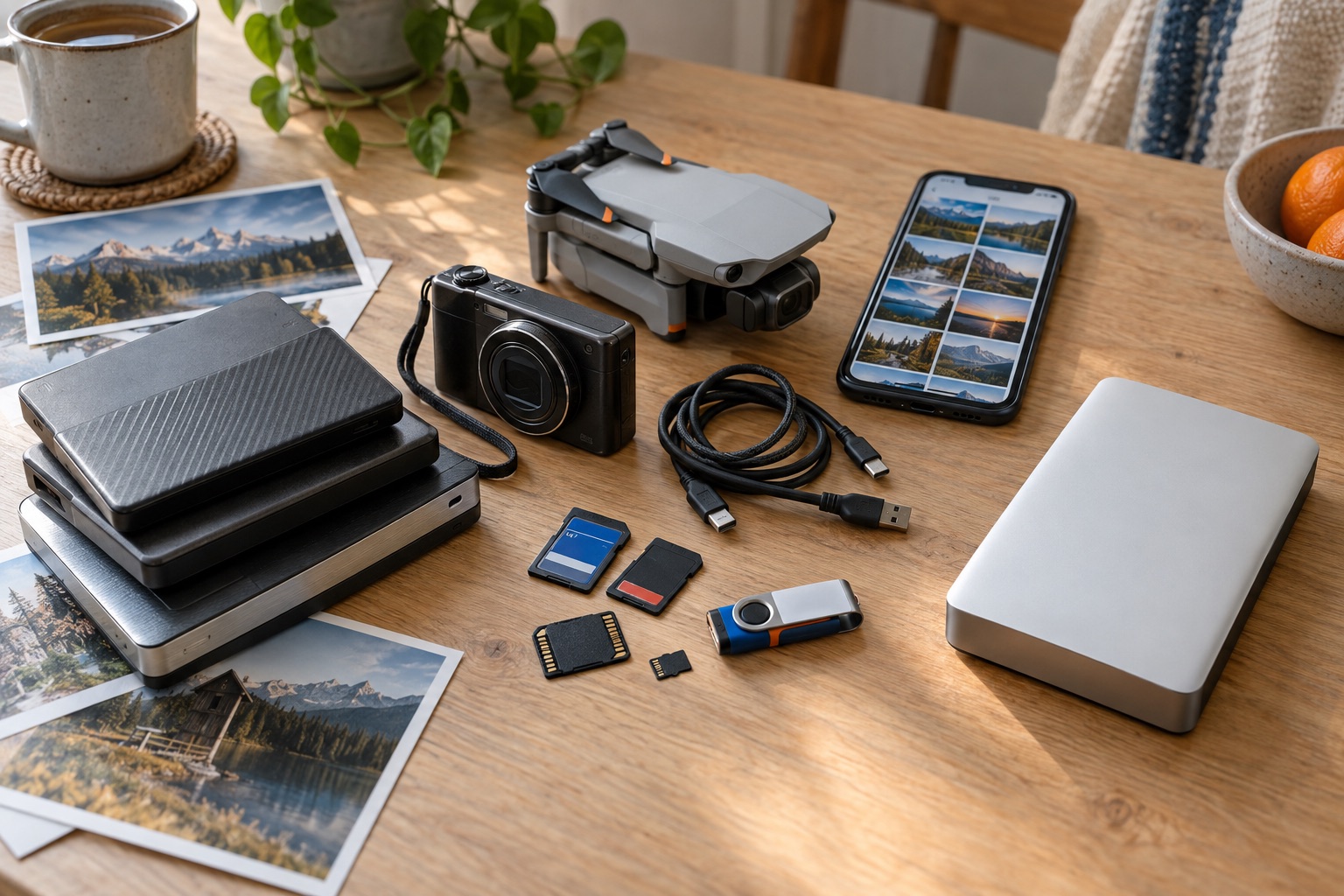
Holiday photos at Apple. RAW files on the card in your camera. Drone videos on a tiny microSD. And somewhere, there is still that USB stick from Mum.
Then you need that one picture.
You connect the first drive. It has “Holidays”, “New holidays” and “Pictures to sort”. On the second drive, you find a different selection. Wasn’t the finished picture on the iPad? And who has the photos from the last family gathering?
Something always gets added over the years: a new camera, a new phone, cloud storage that has filled up. Your pictures tell a connected story. They are stored in many different places.
Give your pictures a shared home.
Get an external drive with enough capacity. It needs room for your existing pictures and videos, with space to spare for the coming years. A folder on that drive will become your archive.
TrueArchive imports pictures from Apple Photos, SD cards and selected folders on your drives. You decide which sources to include and when to archive them.
Connect sources
Add Apple Photos, insert cards and choose the folders you want. Mum’s pictures folder can join them too.
Choose an archive folder
You choose the folder on your archive drive. New archives organise ordinary files by year, month and day: for example,
2026/2026-09/2026-09-10/. Only months and days containing files are created.Unbekanntstays directly in the archive. How files are organized.Import pictures
Archive one source or all connected sources. For later syncs, you can enable a schedule for each source.
Plan for a second backup too: a single archive drive can fail. An independent copy provides additional protection for your collection. Regular cloud backups with Hetzner, including restoration, are planned as a later module and are not yet available.
A picture has more to tell than its filename.
When was it taken? Where was it? Which edit belongs to it? TrueArchive preserves available information such as capture date, GPS coordinates, keywords and supported album information. What comes along depends on the source and file format.
XMP files store this metadata using an open standard and sit alongside your pictures as companion files. TrueArchive imports and adds to existing XMP files, or creates them in the archive when none exist.
Originals and available finished versions are preserved. RAW files and their metadata also stay together; different Nitro edits can remain separate variants. The guide explains variants and metadata conflicts.
Apple Vision can add keywords in German, English or both, locally on your Mac. Existing keywords are preserved.
Find them again with digiKam.
digiKam is a free, open-source photo management application for organising and searching your archived picture collection. Add your archive folder to it and search using the available metadata, such as date, keywords or capture location.
Once digiKam has indexed the faces and you have assigned names to them, you can also search by person. Find Mum’s pictures again, even when they originally lived on different drives and cards. More about finding people in digiKam.
TrueArchive handles importing; digiKam handles browsing and search. For now, you set up digiKam yourself. Automatic setup is planned as a later module.
Your pictures also remain accessible in Finder. You can connect the archive drive to another Mac and continue using it there. Archiving does not delete your source files.
Bring your scattered pictures into one archive.
TrueArchive is in alpha. Sign up for the beta; we will contact you when you can join the next round of testing.
Join the betaA personal project for a good cause: contributions through TrueArchive are passed on in full to Dentists for Africa. How you can help.